> ## Documentation Index
> Fetch the complete documentation index at: https://docs-dev-update-unified-phone-experience-doc.mintlify.site/llms.txt
> Use this file to discover all available pages before exploring further.

> Learn how to configure an update policy form using Forms for Actions for users to review and accept new terms of service or consent updates.

# Use Cases: Configure an update policy form using Forms

<Card title="Before you start">
  1. Create a [Machine-to-Machine Application](/docs/get-started/auth0-overview/create-applications/machine-to-machine-apps) with the following scopes enabled:

  * `read:users`
  * `update:users`
  * `create:users`
  * `read:users_app_metadata`
  * `update:users_app_metadata`
  * `create:users_app_metadata`

  2. Add a [Vault connection](/docs/customize/forms/vault) using the M2M application credentials.
</Card>

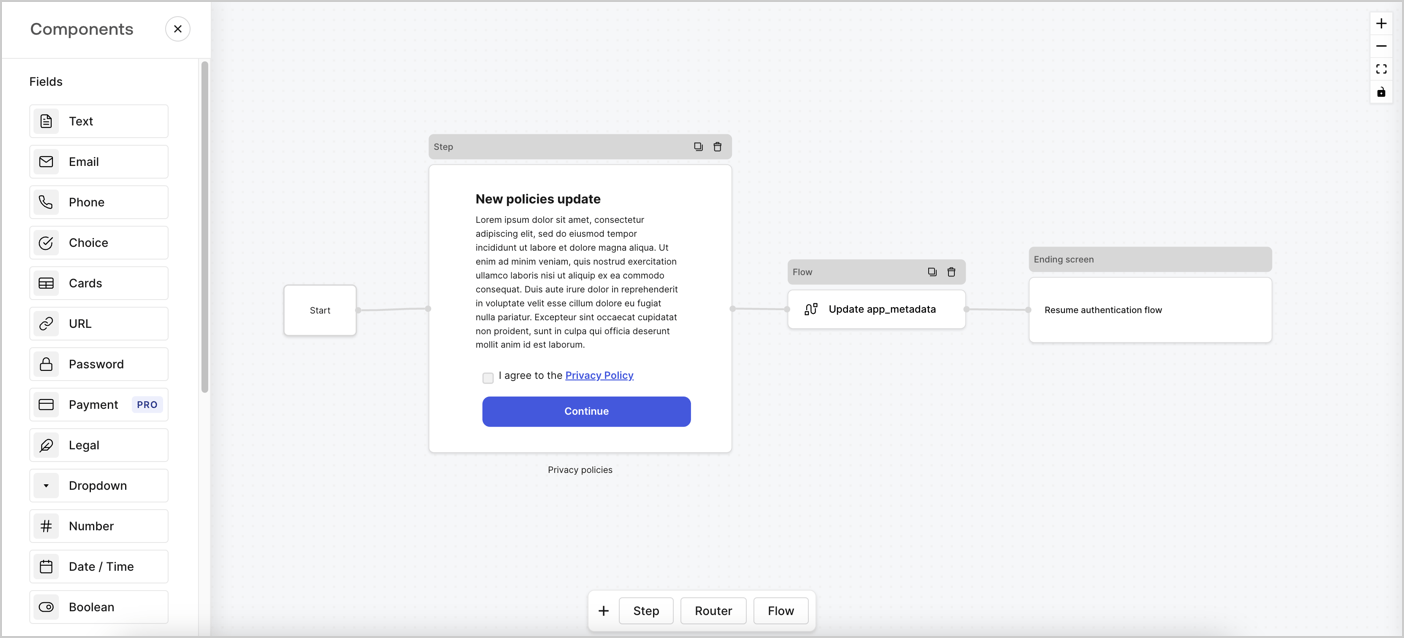
Forms for Actions allows you to create custom privacy policies flows and store the consent under the `app_metadata` object.
<Frame>
  <img src="https://mintcdn.com/docs-dev-update-unified-phone-experience-doc/R0nhW3wVazuILJct/docs/images/cdy7uua7fh8z/6i68dMvHDTijfRmSgN1x8Q/ad900e7d4c0fb34645921435472b8684/privavy-policy-form.png?fit=max&auto=format&n=R0nhW3wVazuILJct&q=85&s=8f6ff95bb625f1320db621ab29554d36" alt="Dashboard > Actions > Forms > Privacy policy use case" data-og-width="1404" width="1404" data-og-height="638" height="638" data-path="docs/images/cdy7uua7fh8z/6i68dMvHDTijfRmSgN1x8Q/ad900e7d4c0fb34645921435472b8684/privavy-policy-form.png" data-optimize="true" data-opv="3" srcset="https://mintcdn.com/docs-dev-update-unified-phone-experience-doc/R0nhW3wVazuILJct/docs/images/cdy7uua7fh8z/6i68dMvHDTijfRmSgN1x8Q/ad900e7d4c0fb34645921435472b8684/privavy-policy-form.png?w=280&fit=max&auto=format&n=R0nhW3wVazuILJct&q=85&s=fc39068e950d042ca70b8ccb89e61142 280w, https://mintcdn.com/docs-dev-update-unified-phone-experience-doc/R0nhW3wVazuILJct/docs/images/cdy7uua7fh8z/6i68dMvHDTijfRmSgN1x8Q/ad900e7d4c0fb34645921435472b8684/privavy-policy-form.png?w=560&fit=max&auto=format&n=R0nhW3wVazuILJct&q=85&s=bcf82bd8f6e7d6a22966cf6944f71e57 560w, https://mintcdn.com/docs-dev-update-unified-phone-experience-doc/R0nhW3wVazuILJct/docs/images/cdy7uua7fh8z/6i68dMvHDTijfRmSgN1x8Q/ad900e7d4c0fb34645921435472b8684/privavy-policy-form.png?w=840&fit=max&auto=format&n=R0nhW3wVazuILJct&q=85&s=c54fe009643d5a597fc7187d82095f81 840w, https://mintcdn.com/docs-dev-update-unified-phone-experience-doc/R0nhW3wVazuILJct/docs/images/cdy7uua7fh8z/6i68dMvHDTijfRmSgN1x8Q/ad900e7d4c0fb34645921435472b8684/privavy-policy-form.png?w=1100&fit=max&auto=format&n=R0nhW3wVazuILJct&q=85&s=250a818d44686e2c36ffaf0f5f3c142f 1100w, https://mintcdn.com/docs-dev-update-unified-phone-experience-doc/R0nhW3wVazuILJct/docs/images/cdy7uua7fh8z/6i68dMvHDTijfRmSgN1x8Q/ad900e7d4c0fb34645921435472b8684/privavy-policy-form.png?w=1650&fit=max&auto=format&n=R0nhW3wVazuILJct&q=85&s=a7c38fc0a30a18f1cf7534f68aabdfae 1650w, https://mintcdn.com/docs-dev-update-unified-phone-experience-doc/R0nhW3wVazuILJct/docs/images/cdy7uua7fh8z/6i68dMvHDTijfRmSgN1x8Q/ad900e7d4c0fb34645921435472b8684/privavy-policy-form.png?w=2500&fit=max&auto=format&n=R0nhW3wVazuILJct&q=85&s=29944a6d886ff8c7620ed451645c06b4 2500w" />
</Frame>

The sections below outline how you can create an Update Policy form using nodes and flows, along with steps for adding your form to a [Post Login](/docs/customize/actions/explore-triggers/signup-and-login-triggers/login-trigger) Action.

## Create a form from scratch

Follow these steps to create a form to gather information:

1. Open the Form editor by selecting **Auth0 Dashboard > Actions > Forms.**
2. Select **Create Form** > **Start from scratch**.

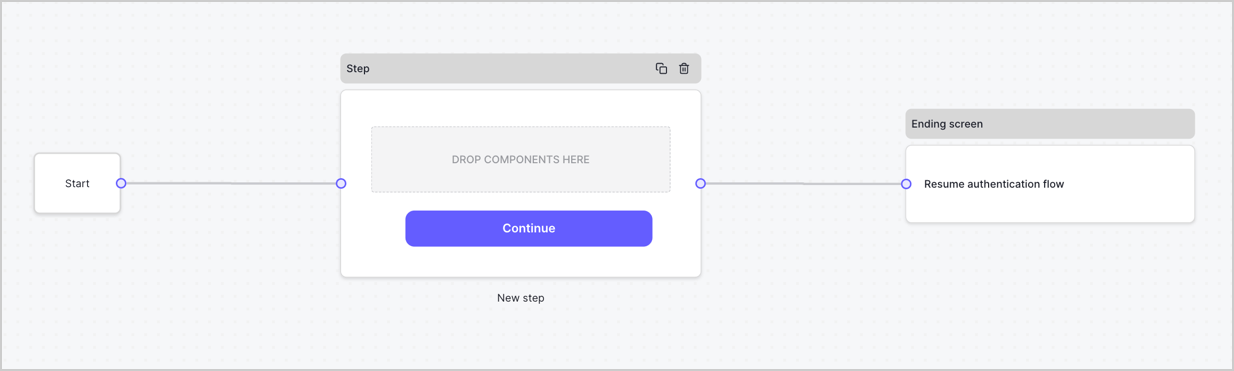
By default, a new form contains a Start node, a Step node, and an Ending screen node.
<Frame>
  <img src="https://mintcdn.com/docs-dev-update-unified-phone-experience-doc/ylEl3ArZzzwf2CXu/docs/images/cdy7uua7fh8z/2TZ9jSjgEcARFpULI6hz4R/a4319a1bd482f2ee5cc23100fdb2f42c/New-form-Forms-for-action-use-case.png?fit=max&auto=format&n=ylEl3ArZzzwf2CXu&q=85&s=2c30c02b5baec926acd57546f7bbcb6f" alt="Dashboard > Forms > Use Cases > Form" data-og-width="1234" width="1234" data-og-height="371" height="371" data-path="docs/images/cdy7uua7fh8z/2TZ9jSjgEcARFpULI6hz4R/a4319a1bd482f2ee5cc23100fdb2f42c/New-form-Forms-for-action-use-case.png" data-optimize="true" data-opv="3" srcset="https://mintcdn.com/docs-dev-update-unified-phone-experience-doc/ylEl3ArZzzwf2CXu/docs/images/cdy7uua7fh8z/2TZ9jSjgEcARFpULI6hz4R/a4319a1bd482f2ee5cc23100fdb2f42c/New-form-Forms-for-action-use-case.png?w=280&fit=max&auto=format&n=ylEl3ArZzzwf2CXu&q=85&s=6eddd95d2ba9a42c21aec1fac0d185b8 280w, https://mintcdn.com/docs-dev-update-unified-phone-experience-doc/ylEl3ArZzzwf2CXu/docs/images/cdy7uua7fh8z/2TZ9jSjgEcARFpULI6hz4R/a4319a1bd482f2ee5cc23100fdb2f42c/New-form-Forms-for-action-use-case.png?w=560&fit=max&auto=format&n=ylEl3ArZzzwf2CXu&q=85&s=5473f8c496379f1191a5e7aa77ebd64a 560w, https://mintcdn.com/docs-dev-update-unified-phone-experience-doc/ylEl3ArZzzwf2CXu/docs/images/cdy7uua7fh8z/2TZ9jSjgEcARFpULI6hz4R/a4319a1bd482f2ee5cc23100fdb2f42c/New-form-Forms-for-action-use-case.png?w=840&fit=max&auto=format&n=ylEl3ArZzzwf2CXu&q=85&s=c5f7fa3e41beb302f3e782a47a45a75c 840w, https://mintcdn.com/docs-dev-update-unified-phone-experience-doc/ylEl3ArZzzwf2CXu/docs/images/cdy7uua7fh8z/2TZ9jSjgEcARFpULI6hz4R/a4319a1bd482f2ee5cc23100fdb2f42c/New-form-Forms-for-action-use-case.png?w=1100&fit=max&auto=format&n=ylEl3ArZzzwf2CXu&q=85&s=692322817d08b7a67fef49e568a9b292 1100w, https://mintcdn.com/docs-dev-update-unified-phone-experience-doc/ylEl3ArZzzwf2CXu/docs/images/cdy7uua7fh8z/2TZ9jSjgEcARFpULI6hz4R/a4319a1bd482f2ee5cc23100fdb2f42c/New-form-Forms-for-action-use-case.png?w=1650&fit=max&auto=format&n=ylEl3ArZzzwf2CXu&q=85&s=b1f725fb8385426f61c1c602ef079814 1650w, https://mintcdn.com/docs-dev-update-unified-phone-experience-doc/ylEl3ArZzzwf2CXu/docs/images/cdy7uua7fh8z/2TZ9jSjgEcARFpULI6hz4R/a4319a1bd482f2ee5cc23100fdb2f42c/New-form-Forms-for-action-use-case.png?w=2500&fit=max&auto=format&n=ylEl3ArZzzwf2CXu&q=85&s=8593ccd6aebda8ef2ab5b8eb020663df 2500w" />
</Frame>

### Configure the Step node

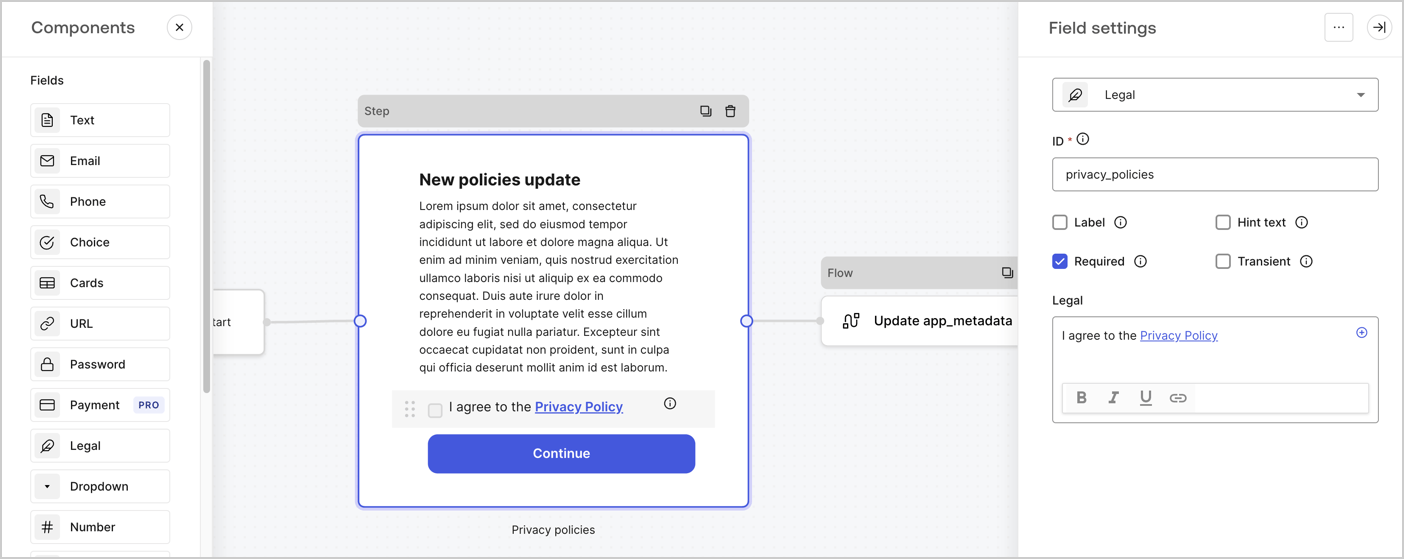
The Step node is the graphical interface visible to users. Add [Fields](/docs/customize/forms/nodes-and-components) to the Step node to collect the new agreement acceptance value by following these steps:

1. Drag a **Rich text** field from the **Components menu** into the **Step** node.

   * **Rich text**: Enter a description of your privacy policies updates.
   * Select **Save**.
2. Drag a **Legal** field into the **Step** node.

   * **ID**: Enter `privacy_policies`.
   * **Required**: Enable the checkbox.
   * **Legal**: Enter `I agree to the Privacy Policy`.
   * Select **Save**.
3. Select **Publish** to save.
<Frame>
  <img src="https://mintcdn.com/docs-dev-update-unified-phone-experience-doc/5pOEQwFPV53i-hEv/docs/images/cdy7uua7fh8z/59zFFjQjAnjogkc2QGIqqJ/0ad66b1b636544122aa4e65968b76c2c/privacy-policy-step-node.png?fit=max&auto=format&n=5pOEQwFPV53i-hEv&q=85&s=6d45d246649e40f829b0bcc7b0ac2f74" alt="Dashboard > Actions > Forms > Use case privacy policy step node" data-og-width="1404" width="1404" data-og-height="559" height="559" data-path="docs/images/cdy7uua7fh8z/59zFFjQjAnjogkc2QGIqqJ/0ad66b1b636544122aa4e65968b76c2c/privacy-policy-step-node.png" data-optimize="true" data-opv="3" srcset="https://mintcdn.com/docs-dev-update-unified-phone-experience-doc/5pOEQwFPV53i-hEv/docs/images/cdy7uua7fh8z/59zFFjQjAnjogkc2QGIqqJ/0ad66b1b636544122aa4e65968b76c2c/privacy-policy-step-node.png?w=280&fit=max&auto=format&n=5pOEQwFPV53i-hEv&q=85&s=05d0472b5b299d9e6ef9130012232088 280w, https://mintcdn.com/docs-dev-update-unified-phone-experience-doc/5pOEQwFPV53i-hEv/docs/images/cdy7uua7fh8z/59zFFjQjAnjogkc2QGIqqJ/0ad66b1b636544122aa4e65968b76c2c/privacy-policy-step-node.png?w=560&fit=max&auto=format&n=5pOEQwFPV53i-hEv&q=85&s=d2578fb6b7061297835d8440bd2ef62f 560w, https://mintcdn.com/docs-dev-update-unified-phone-experience-doc/5pOEQwFPV53i-hEv/docs/images/cdy7uua7fh8z/59zFFjQjAnjogkc2QGIqqJ/0ad66b1b636544122aa4e65968b76c2c/privacy-policy-step-node.png?w=840&fit=max&auto=format&n=5pOEQwFPV53i-hEv&q=85&s=4d931abf28042e3ba70f2800a81a51c5 840w, https://mintcdn.com/docs-dev-update-unified-phone-experience-doc/5pOEQwFPV53i-hEv/docs/images/cdy7uua7fh8z/59zFFjQjAnjogkc2QGIqqJ/0ad66b1b636544122aa4e65968b76c2c/privacy-policy-step-node.png?w=1100&fit=max&auto=format&n=5pOEQwFPV53i-hEv&q=85&s=d8395aebafbbbc59d9b5f1c4d84fe824 1100w, https://mintcdn.com/docs-dev-update-unified-phone-experience-doc/5pOEQwFPV53i-hEv/docs/images/cdy7uua7fh8z/59zFFjQjAnjogkc2QGIqqJ/0ad66b1b636544122aa4e65968b76c2c/privacy-policy-step-node.png?w=1650&fit=max&auto=format&n=5pOEQwFPV53i-hEv&q=85&s=537453323d352a2553b81d865cc84c6e 1650w, https://mintcdn.com/docs-dev-update-unified-phone-experience-doc/5pOEQwFPV53i-hEv/docs/images/cdy7uua7fh8z/59zFFjQjAnjogkc2QGIqqJ/0ad66b1b636544122aa4e65968b76c2c/privacy-policy-step-node.png?w=2500&fit=max&auto=format&n=5pOEQwFPV53i-hEv&q=85&s=b470271da3a164722faf9a761d0d7fa3 2500w" />
</Frame>

### Configure the Flow node

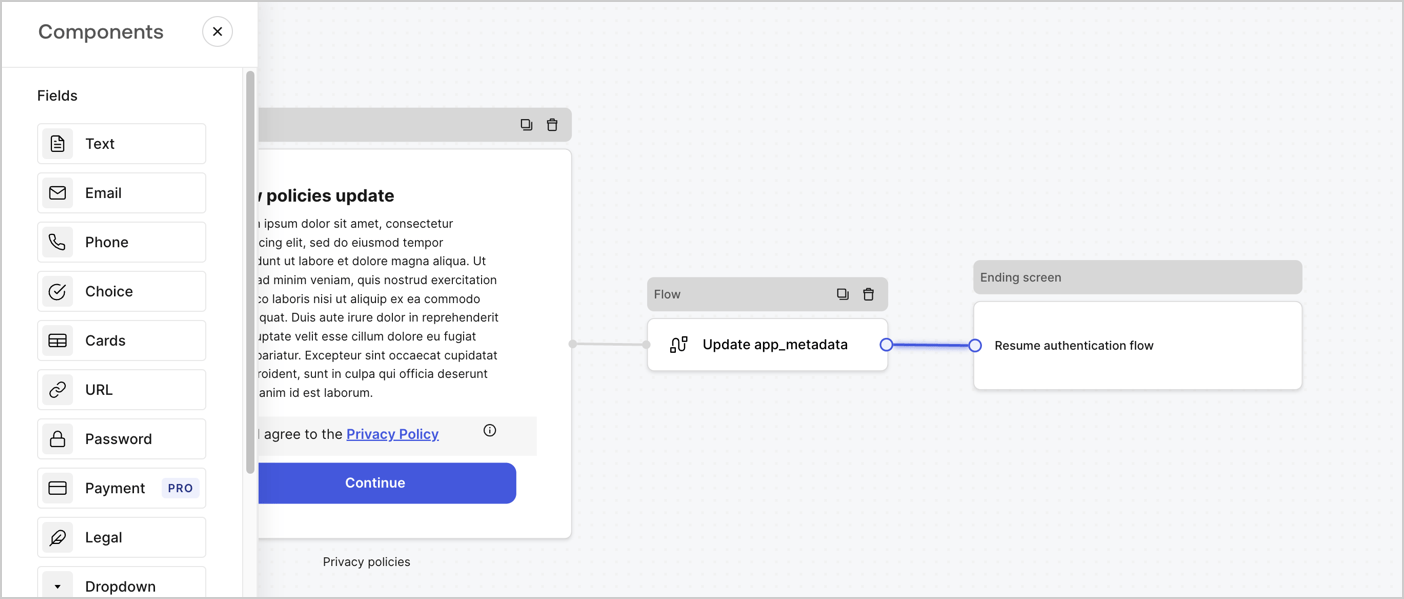
Add a **Flow** node after the **Step** node to update the `app_metadata` and resume the authentication flow by following these steps:

1. Select **Flow** from the bottom of the Form editor.
2. Remove the existing link between the **Step** and **Ending Screen** nodes.
3. Select the new **Flow** > **Click to add a flow** > **Create a new flow.**

   * Enter `Update app_metadata` in the **Name** field.
   * Select **Create**.
   * Select **Save**.
4. Link the **Flow** node to the **Step** and **Ending Screen** nodes as pictured below.
5. Select **Publish** to save.
<Frame>
  <img src="https://mintcdn.com/docs-dev-update-unified-phone-experience-doc/R0nhW3wVazuILJct/docs/images/cdy7uua7fh8z/6YIkzm7SrpM9LW76AXuRzh/353c518fe82bbaa440836da1d83596d6/link-policies.png?fit=max&auto=format&n=R0nhW3wVazuILJct&q=85&s=9f6ce53756c4216c59f7c5619db3d9e3" alt="Dashboard > Actions > Forms > Form" data-og-width="1404" width="1404" data-og-height="599" height="599" data-path="docs/images/cdy7uua7fh8z/6YIkzm7SrpM9LW76AXuRzh/353c518fe82bbaa440836da1d83596d6/link-policies.png" data-optimize="true" data-opv="3" srcset="https://mintcdn.com/docs-dev-update-unified-phone-experience-doc/R0nhW3wVazuILJct/docs/images/cdy7uua7fh8z/6YIkzm7SrpM9LW76AXuRzh/353c518fe82bbaa440836da1d83596d6/link-policies.png?w=280&fit=max&auto=format&n=R0nhW3wVazuILJct&q=85&s=03bea23d2c7b91b1e5ff5233e9494d2f 280w, https://mintcdn.com/docs-dev-update-unified-phone-experience-doc/R0nhW3wVazuILJct/docs/images/cdy7uua7fh8z/6YIkzm7SrpM9LW76AXuRzh/353c518fe82bbaa440836da1d83596d6/link-policies.png?w=560&fit=max&auto=format&n=R0nhW3wVazuILJct&q=85&s=0ed61074cb1b5ce59e4d8be04511dac0 560w, https://mintcdn.com/docs-dev-update-unified-phone-experience-doc/R0nhW3wVazuILJct/docs/images/cdy7uua7fh8z/6YIkzm7SrpM9LW76AXuRzh/353c518fe82bbaa440836da1d83596d6/link-policies.png?w=840&fit=max&auto=format&n=R0nhW3wVazuILJct&q=85&s=03747ebc0b8a99c574cf84afe9676fa4 840w, https://mintcdn.com/docs-dev-update-unified-phone-experience-doc/R0nhW3wVazuILJct/docs/images/cdy7uua7fh8z/6YIkzm7SrpM9LW76AXuRzh/353c518fe82bbaa440836da1d83596d6/link-policies.png?w=1100&fit=max&auto=format&n=R0nhW3wVazuILJct&q=85&s=c5c9f0db8c1ef2e6b4aba7545fc22fc6 1100w, https://mintcdn.com/docs-dev-update-unified-phone-experience-doc/R0nhW3wVazuILJct/docs/images/cdy7uua7fh8z/6YIkzm7SrpM9LW76AXuRzh/353c518fe82bbaa440836da1d83596d6/link-policies.png?w=1650&fit=max&auto=format&n=R0nhW3wVazuILJct&q=85&s=963083f1f8251424e953f535b22c5563 1650w, https://mintcdn.com/docs-dev-update-unified-phone-experience-doc/R0nhW3wVazuILJct/docs/images/cdy7uua7fh8z/6YIkzm7SrpM9LW76AXuRzh/353c518fe82bbaa440836da1d83596d6/link-policies.png?w=2500&fit=max&auto=format&n=R0nhW3wVazuILJct&q=85&s=701586b449e21629eeff405bfa41daab 2500w" />
</Frame>

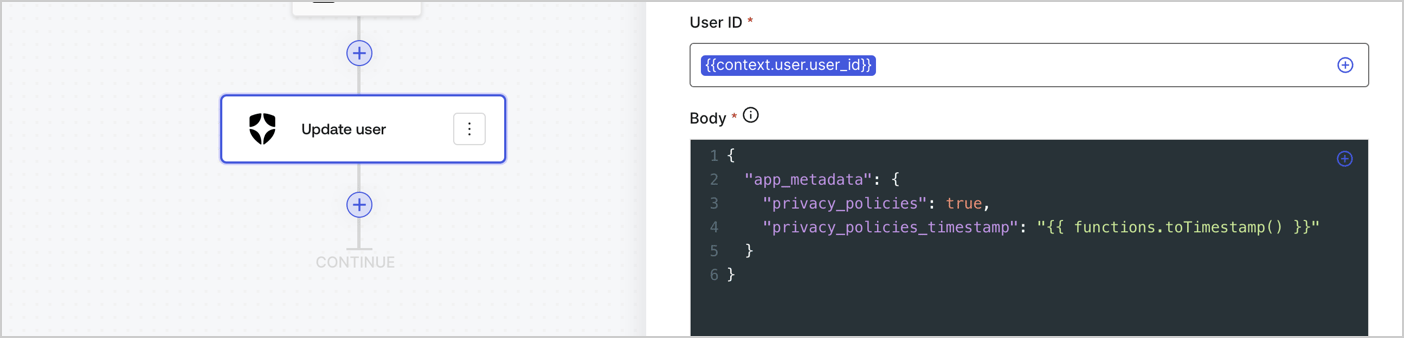
Add an Auth0 Update user action to the flow by following these steps:

1. Select the **Flow** **Update app\_metadata** > **Edit flow** to open the Flow editor in a new tab.
2. Below the StartAction, select the **+** icon to add an **Update user** action. Complete the fields below, then select **Save** to continue.

   * **Connection**: Select from the dropdown the Vault connection to your M2M application.

   * **User ID**: Enter `{{context.user.user_id}}`.

   * **Body**: Copy and paste the following code to update the app\_metadata with the privacy\_policies and privacy\_policies\_timestamp properties.

     ```text lines theme={null}
     {
       "app_metadata": {
         "privacy_policies": true,
         "privacy_policies_timestamp": "{{ functions.toTimestamp() }}"
       }
     }
     ```

   * Select **Save**.
3. Select **Publish** to save.
<Frame>
  <img src="https://mintcdn.com/docs-dev-update-unified-phone-experience-doc/6MVFgQ7ou9rE1PXL/docs/images/cdy7uua7fh8z/CvMNIwWrOUwaFW4X3G28p/1fb70ae57a20749d9ffaaba8dc0b7e26/update-user-privacy.png?fit=max&auto=format&n=6MVFgQ7ou9rE1PXL&q=85&s=2c7efde5ebcb5cedd24be481eb7af65e" alt="Dashboard > Actions > Forms > User case privacy policy code" data-og-width="1404" width="1404" data-og-height="338" height="338" data-path="docs/images/cdy7uua7fh8z/CvMNIwWrOUwaFW4X3G28p/1fb70ae57a20749d9ffaaba8dc0b7e26/update-user-privacy.png" data-optimize="true" data-opv="3" srcset="https://mintcdn.com/docs-dev-update-unified-phone-experience-doc/6MVFgQ7ou9rE1PXL/docs/images/cdy7uua7fh8z/CvMNIwWrOUwaFW4X3G28p/1fb70ae57a20749d9ffaaba8dc0b7e26/update-user-privacy.png?w=280&fit=max&auto=format&n=6MVFgQ7ou9rE1PXL&q=85&s=60980a2d519a4226647afc7137461237 280w, https://mintcdn.com/docs-dev-update-unified-phone-experience-doc/6MVFgQ7ou9rE1PXL/docs/images/cdy7uua7fh8z/CvMNIwWrOUwaFW4X3G28p/1fb70ae57a20749d9ffaaba8dc0b7e26/update-user-privacy.png?w=560&fit=max&auto=format&n=6MVFgQ7ou9rE1PXL&q=85&s=0edd5084827f1256ad37b4aa1bdf3759 560w, https://mintcdn.com/docs-dev-update-unified-phone-experience-doc/6MVFgQ7ou9rE1PXL/docs/images/cdy7uua7fh8z/CvMNIwWrOUwaFW4X3G28p/1fb70ae57a20749d9ffaaba8dc0b7e26/update-user-privacy.png?w=840&fit=max&auto=format&n=6MVFgQ7ou9rE1PXL&q=85&s=9d8504d2d00256107f3279b4d323a280 840w, https://mintcdn.com/docs-dev-update-unified-phone-experience-doc/6MVFgQ7ou9rE1PXL/docs/images/cdy7uua7fh8z/CvMNIwWrOUwaFW4X3G28p/1fb70ae57a20749d9ffaaba8dc0b7e26/update-user-privacy.png?w=1100&fit=max&auto=format&n=6MVFgQ7ou9rE1PXL&q=85&s=0b204389995fe417a3e06c73a24d9b19 1100w, https://mintcdn.com/docs-dev-update-unified-phone-experience-doc/6MVFgQ7ou9rE1PXL/docs/images/cdy7uua7fh8z/CvMNIwWrOUwaFW4X3G28p/1fb70ae57a20749d9ffaaba8dc0b7e26/update-user-privacy.png?w=1650&fit=max&auto=format&n=6MVFgQ7ou9rE1PXL&q=85&s=8e13bcd050c342b9cf837a9b14416238 1650w, https://mintcdn.com/docs-dev-update-unified-phone-experience-doc/6MVFgQ7ou9rE1PXL/docs/images/cdy7uua7fh8z/CvMNIwWrOUwaFW4X3G28p/1fb70ae57a20749d9ffaaba8dc0b7e26/update-user-privacy.png?w=2500&fit=max&auto=format&n=6MVFgQ7ou9rE1PXL&q=85&s=69a1713241a3fb5b96246f5aabb5dbf2 2500w" />
</Frame>

<Callout icon="file-lines" color="#0EA5E9" iconType="regular">
  The flow **Update app\_metadata** adds a `privacy_policies true` value to the app`_metadata` object and also generates a timestamp with a [helper function.](/docs/customize/forms/variables)
</Callout>

## Retrieve the form render code

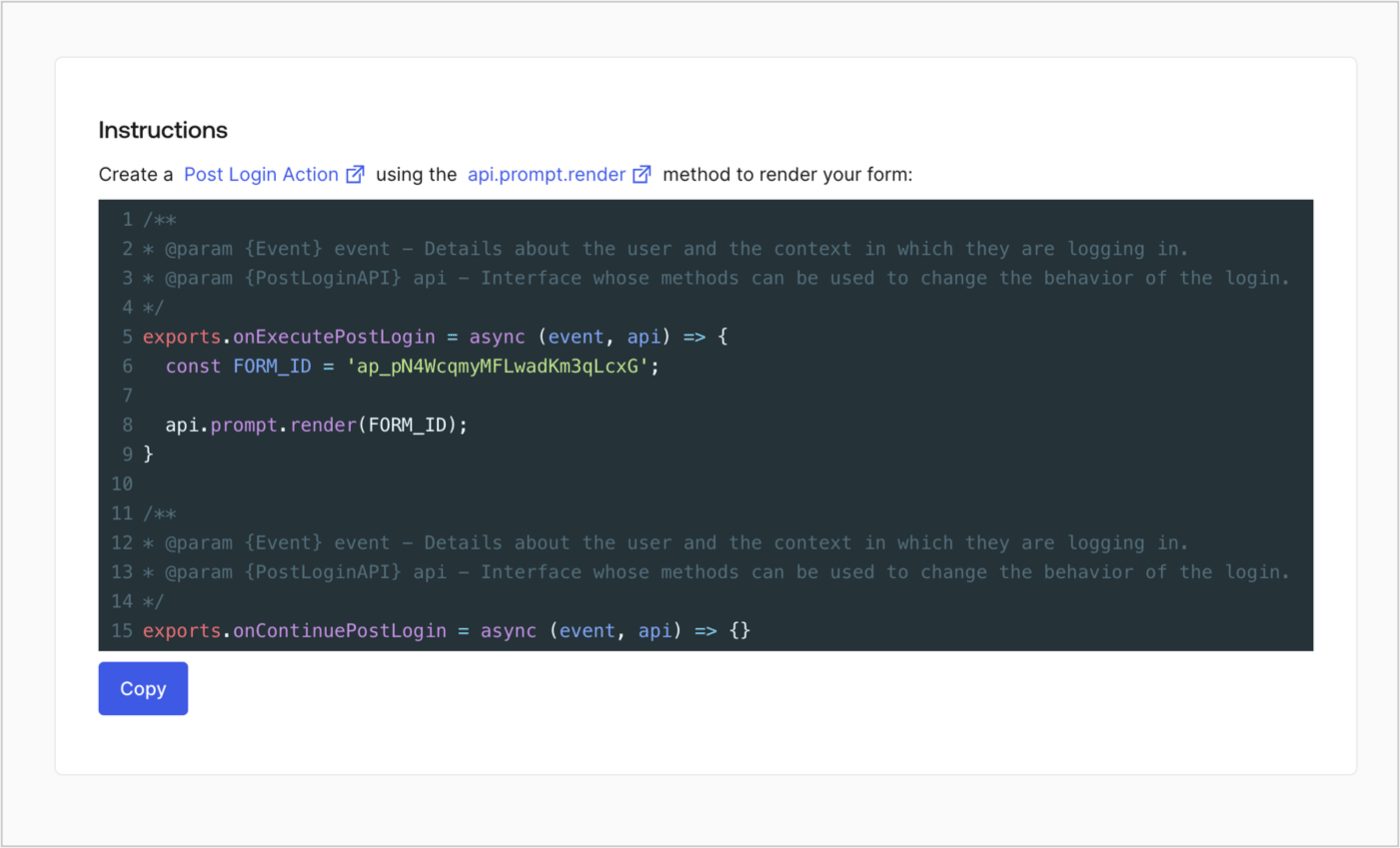
Retrieve your form render code to visually render the form with a custom Post Login Action by following these steps:

* From the Form editor, select **`<> Render`**.
* Select **Copy**.
<Frame>
  <img src="https://mintcdn.com/docs-dev-update-unified-phone-experience-doc/7xWcOOQmOL2i0RtP/docs/images/cdy7uua7fh8z/2EIUzc539sq9lwoTKbjoJv/496a864c0fc44a782c9cadca119dbfb0/embed.png?fit=max&auto=format&n=7xWcOOQmOL2i0RtP&q=85&s=d363c35d15372e75cc3f3df3963b7bea" alt="Dashboard > Actions > Forms > Form > Embed" data-og-width="1400" width="1400" data-og-height="848" height="848" data-path="docs/images/cdy7uua7fh8z/2EIUzc539sq9lwoTKbjoJv/496a864c0fc44a782c9cadca119dbfb0/embed.png" data-optimize="true" data-opv="3" srcset="https://mintcdn.com/docs-dev-update-unified-phone-experience-doc/7xWcOOQmOL2i0RtP/docs/images/cdy7uua7fh8z/2EIUzc539sq9lwoTKbjoJv/496a864c0fc44a782c9cadca119dbfb0/embed.png?w=280&fit=max&auto=format&n=7xWcOOQmOL2i0RtP&q=85&s=16d43f399f0615a0361ed0bb531da91b 280w, https://mintcdn.com/docs-dev-update-unified-phone-experience-doc/7xWcOOQmOL2i0RtP/docs/images/cdy7uua7fh8z/2EIUzc539sq9lwoTKbjoJv/496a864c0fc44a782c9cadca119dbfb0/embed.png?w=560&fit=max&auto=format&n=7xWcOOQmOL2i0RtP&q=85&s=301a70a16d117adc54ca1e671659d5e5 560w, https://mintcdn.com/docs-dev-update-unified-phone-experience-doc/7xWcOOQmOL2i0RtP/docs/images/cdy7uua7fh8z/2EIUzc539sq9lwoTKbjoJv/496a864c0fc44a782c9cadca119dbfb0/embed.png?w=840&fit=max&auto=format&n=7xWcOOQmOL2i0RtP&q=85&s=3596092c35d8cb03a5dc11ad3e4c3845 840w, https://mintcdn.com/docs-dev-update-unified-phone-experience-doc/7xWcOOQmOL2i0RtP/docs/images/cdy7uua7fh8z/2EIUzc539sq9lwoTKbjoJv/496a864c0fc44a782c9cadca119dbfb0/embed.png?w=1100&fit=max&auto=format&n=7xWcOOQmOL2i0RtP&q=85&s=828c1b677bb9e216284bca61a23dd211 1100w, https://mintcdn.com/docs-dev-update-unified-phone-experience-doc/7xWcOOQmOL2i0RtP/docs/images/cdy7uua7fh8z/2EIUzc539sq9lwoTKbjoJv/496a864c0fc44a782c9cadca119dbfb0/embed.png?w=1650&fit=max&auto=format&n=7xWcOOQmOL2i0RtP&q=85&s=b7180b46815d591ef22537802e50d437 1650w, https://mintcdn.com/docs-dev-update-unified-phone-experience-doc/7xWcOOQmOL2i0RtP/docs/images/cdy7uua7fh8z/2EIUzc539sq9lwoTKbjoJv/496a864c0fc44a782c9cadca119dbfb0/embed.png?w=2500&fit=max&auto=format&n=7xWcOOQmOL2i0RtP&q=85&s=600b150f76e13d1ad2b85ff5db195ec3 2500w" />
</Frame>

## Create a Post Login Action

Create a post-login Action to render your form by following these steps:

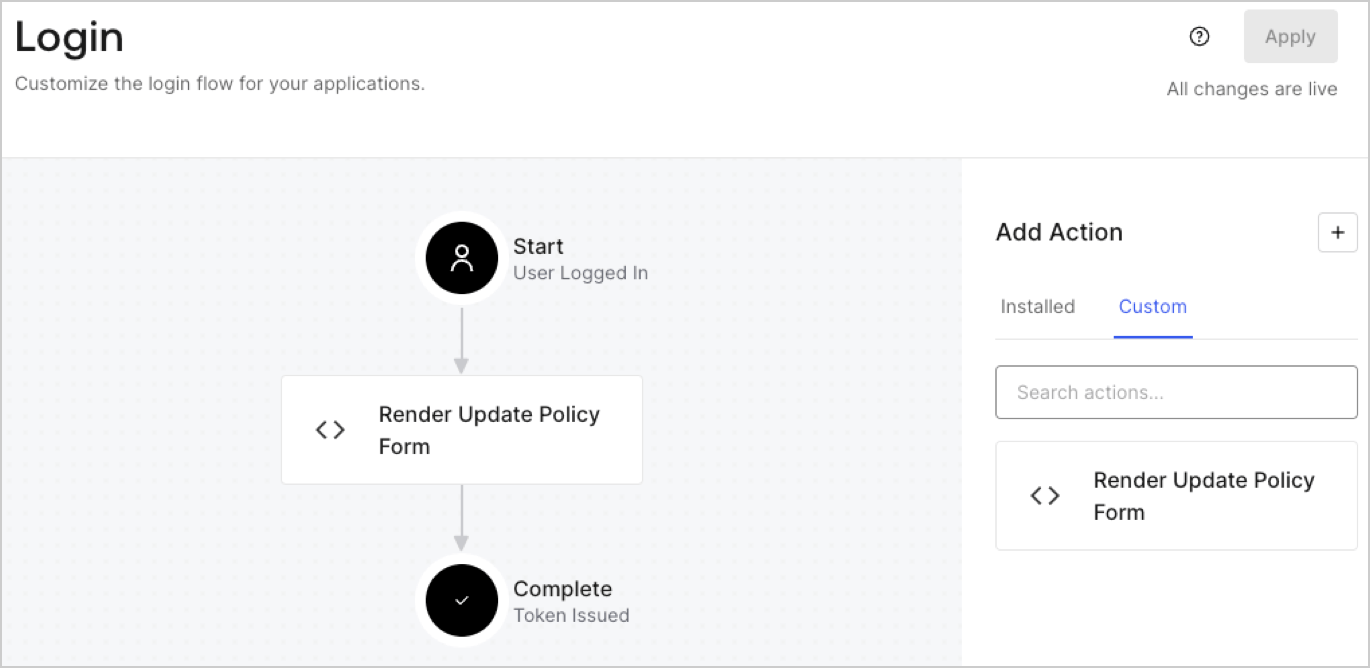
1. Navigate to **Auth0 Dashboard > Actions > Flows > Login.**
2. Select the **+** icon and Select **Build from scratch**:

   * **Name**: Enter `Render Update Policy Form`.
   * **Trigger**: Select `Login / Post Login`.
   * **Runtime**: Select the recommended version.
3. Select **Create**.

To configure the post-login Action:

1. Delete the existing code from the Code editor.
2. Paste the form render code into the Code editor.
3. Edit the code to define the conditional logic that will render the form.

   ```javascript lines theme={null}
   /**
   * @param {Event} event - Details about the user and the context in which they are logging in.
   * @param {PostLoginAPI} api - Interface whose methods can be used to change the behavior of the login.
   */
   exports.onExecutePostLogin = async (event, api) => {
     const FORM_ID = 'REPLACE_WITH_YOUR_FORM_ID';

     if (event.user.app_metadata.privacy_policies !== true) {
       api.prompt.render(FORM_ID);
     }
   }

   exports.onContinuePostLogin = async (event, api) => { }
   ```

   <Callout icon="file-lines" color="#0EA5E9" iconType="regular">
     The example code above will render the form when a user is missing the app metadata `privacy_policies` property.
   </Callout>
4. Select **Deploy.**
5. Drag and Drop the **Render Update Policy Form** Action to the **Login** flow.
   <Frame>
     <img src="https://mintcdn.com/docs-dev-update-unified-phone-experience-doc/JB9S1qRFaug_2fQu/docs/images/cdy7uua7fh8z/5TOwDgevZsBqd7yZynUYWU/41ca909dc3007aed4f40ff794a05efa5/postlogin.png?fit=max&auto=format&n=JB9S1qRFaug_2fQu&q=85&s=277a2af1c104a534d78dce124c571a6a" alt="Dashboard > Forms > Use Case > Render update policy form login action" data-og-width="1370" width="1370" data-og-height="668" height="668" data-path="docs/images/cdy7uua7fh8z/5TOwDgevZsBqd7yZynUYWU/41ca909dc3007aed4f40ff794a05efa5/postlogin.png" data-optimize="true" data-opv="3" srcset="https://mintcdn.com/docs-dev-update-unified-phone-experience-doc/JB9S1qRFaug_2fQu/docs/images/cdy7uua7fh8z/5TOwDgevZsBqd7yZynUYWU/41ca909dc3007aed4f40ff794a05efa5/postlogin.png?w=280&fit=max&auto=format&n=JB9S1qRFaug_2fQu&q=85&s=697f5059dbe07deaa237dead41899b19 280w, https://mintcdn.com/docs-dev-update-unified-phone-experience-doc/JB9S1qRFaug_2fQu/docs/images/cdy7uua7fh8z/5TOwDgevZsBqd7yZynUYWU/41ca909dc3007aed4f40ff794a05efa5/postlogin.png?w=560&fit=max&auto=format&n=JB9S1qRFaug_2fQu&q=85&s=fbe72fe84358405b9c3c38b38b43282e 560w, https://mintcdn.com/docs-dev-update-unified-phone-experience-doc/JB9S1qRFaug_2fQu/docs/images/cdy7uua7fh8z/5TOwDgevZsBqd7yZynUYWU/41ca909dc3007aed4f40ff794a05efa5/postlogin.png?w=840&fit=max&auto=format&n=JB9S1qRFaug_2fQu&q=85&s=4b84022e4023ed570151bdce4216d09d 840w, https://mintcdn.com/docs-dev-update-unified-phone-experience-doc/JB9S1qRFaug_2fQu/docs/images/cdy7uua7fh8z/5TOwDgevZsBqd7yZynUYWU/41ca909dc3007aed4f40ff794a05efa5/postlogin.png?w=1100&fit=max&auto=format&n=JB9S1qRFaug_2fQu&q=85&s=d3ea26583c2f6ff459a65273b0c69ba8 1100w, https://mintcdn.com/docs-dev-update-unified-phone-experience-doc/JB9S1qRFaug_2fQu/docs/images/cdy7uua7fh8z/5TOwDgevZsBqd7yZynUYWU/41ca909dc3007aed4f40ff794a05efa5/postlogin.png?w=1650&fit=max&auto=format&n=JB9S1qRFaug_2fQu&q=85&s=7f3eadedebb2834967f3a7af0b7b3579 1650w, https://mintcdn.com/docs-dev-update-unified-phone-experience-doc/JB9S1qRFaug_2fQu/docs/images/cdy7uua7fh8z/5TOwDgevZsBqd7yZynUYWU/41ca909dc3007aed4f40ff794a05efa5/postlogin.png?w=2500&fit=max&auto=format&n=JB9S1qRFaug_2fQu&q=85&s=d06941a077576f3e6e59c56bbdda0b4b 2500w" />
   </Frame>
6. Select **Apply.**

### Test implementation

Test the implementation by following these steps:

1. Log in with an existing user whose app`_metadata` attribute `privacy_policies` does not have a value.
2. The post-login Action in the Login flow will render the form and prompt for acceptance.
3. Select **Auth0 Dashboard > User Management > Users,** locate the user and verify that the `app_metadata` attribute `privacy_policies` contains a `true` value and a timestamp.
