> ## Documentation Index
> Fetch the complete documentation index at: https://docs-dev-update-unified-phone-experience-doc.mintlify.site/llms.txt
> Use this file to discover all available pages before exploring further.

> Learn how to configure a progressive profile form using Forms for Actions

# Use Cases: Configure a progressive profile form using Forms

<Card title="Before you start">
  1. Create a [Machine-to-Machine Application](/docs/get-started/auth0-overview/create-applications/machine-to-machine-apps) with the following scopes enabled:

  * `read:users`
  * `update:users`
  * `create:users`
  * `read:users_app_metadata`
  * `update:users_app_metadata`
  * `create:users_app_metadata`

  2. Add a [Vault connection](/docs/customize/forms/vault) using the M2M application credentials.
</Card>

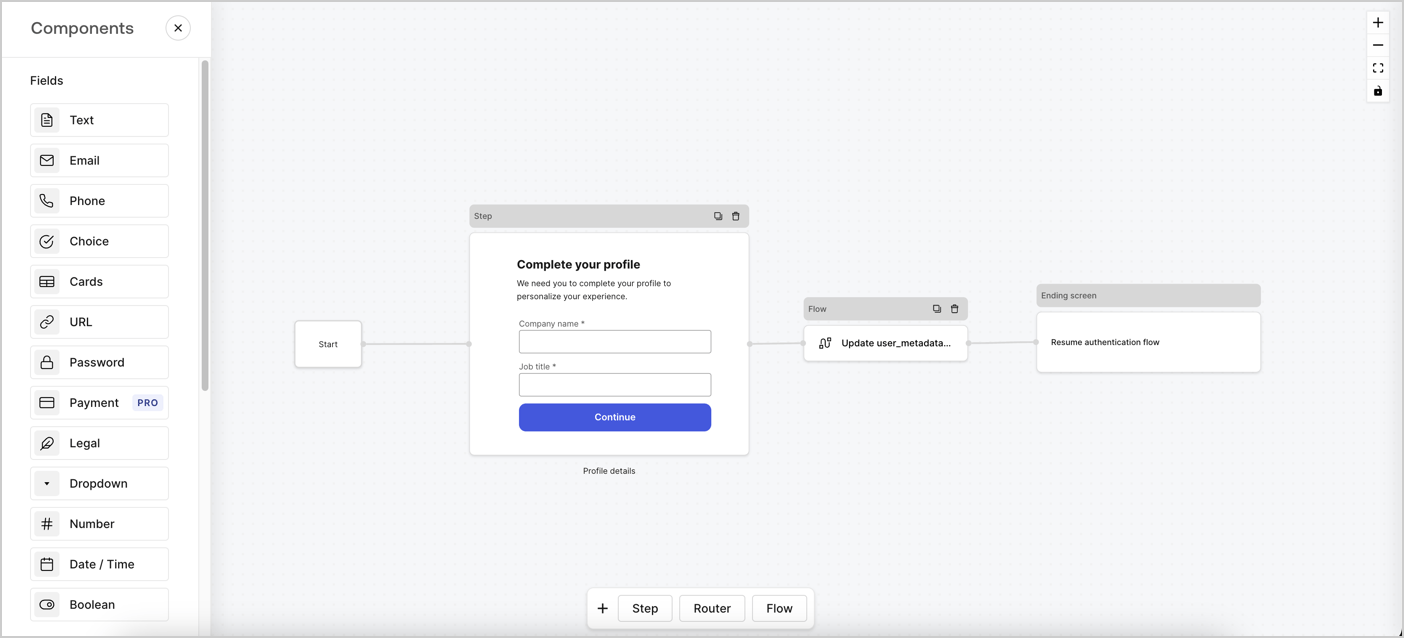
Forms for Actions allows you to create progressive profiling flows to decide when to prompt users to collect missing information, such as company name and job title, and store them as `user_metadata` attributes.
<Frame>
  <img src="https://mintcdn.com/docs-dev-update-unified-phone-experience-doc/SCeeGVRQofcayszI/docs/images/cdy7uua7fh8z/xUx9YmnHvnAqL19JvNtNP/60dae88f893d4ebe8e3523421e960596/Progressive-profle-overview.png?fit=max&auto=format&n=SCeeGVRQofcayszI&q=85&s=aed12fb06286be7a5363c38a60a05444" alt="Dashboard > Actions > Forms > Form" data-og-width="1404" width="1404" data-og-height="638" height="638" data-path="docs/images/cdy7uua7fh8z/xUx9YmnHvnAqL19JvNtNP/60dae88f893d4ebe8e3523421e960596/Progressive-profle-overview.png" data-optimize="true" data-opv="3" srcset="https://mintcdn.com/docs-dev-update-unified-phone-experience-doc/SCeeGVRQofcayszI/docs/images/cdy7uua7fh8z/xUx9YmnHvnAqL19JvNtNP/60dae88f893d4ebe8e3523421e960596/Progressive-profle-overview.png?w=280&fit=max&auto=format&n=SCeeGVRQofcayszI&q=85&s=7f7b4f696bb9b55f7ea0e3e6b4ed19c9 280w, https://mintcdn.com/docs-dev-update-unified-phone-experience-doc/SCeeGVRQofcayszI/docs/images/cdy7uua7fh8z/xUx9YmnHvnAqL19JvNtNP/60dae88f893d4ebe8e3523421e960596/Progressive-profle-overview.png?w=560&fit=max&auto=format&n=SCeeGVRQofcayszI&q=85&s=c10141a87702b630f33cbda6f717159d 560w, https://mintcdn.com/docs-dev-update-unified-phone-experience-doc/SCeeGVRQofcayszI/docs/images/cdy7uua7fh8z/xUx9YmnHvnAqL19JvNtNP/60dae88f893d4ebe8e3523421e960596/Progressive-profle-overview.png?w=840&fit=max&auto=format&n=SCeeGVRQofcayszI&q=85&s=dd9853f177dbbed507e3e16c776ba9ea 840w, https://mintcdn.com/docs-dev-update-unified-phone-experience-doc/SCeeGVRQofcayszI/docs/images/cdy7uua7fh8z/xUx9YmnHvnAqL19JvNtNP/60dae88f893d4ebe8e3523421e960596/Progressive-profle-overview.png?w=1100&fit=max&auto=format&n=SCeeGVRQofcayszI&q=85&s=831568d01386adae7ce589c438ab25c5 1100w, https://mintcdn.com/docs-dev-update-unified-phone-experience-doc/SCeeGVRQofcayszI/docs/images/cdy7uua7fh8z/xUx9YmnHvnAqL19JvNtNP/60dae88f893d4ebe8e3523421e960596/Progressive-profle-overview.png?w=1650&fit=max&auto=format&n=SCeeGVRQofcayszI&q=85&s=173369d3b265f6137f51441f582c8c2e 1650w, https://mintcdn.com/docs-dev-update-unified-phone-experience-doc/SCeeGVRQofcayszI/docs/images/cdy7uua7fh8z/xUx9YmnHvnAqL19JvNtNP/60dae88f893d4ebe8e3523421e960596/Progressive-profle-overview.png?w=2500&fit=max&auto=format&n=SCeeGVRQofcayszI&q=85&s=b329a07d8fe9a0d5e2fd97d4de1bed7a 2500w" />
</Frame>

The sections below outline how you can create a progressive profile form using nodes and flows, along with steps for adding your form to a [Post Login Action](/docs/customize/actions/explore-triggers/signup-and-login-triggers/login-trigger).

## Create a form from scratch

Follow these steps to create a form to gather information:

1. Open the Form editor by selecting **Auth0 Dashboard > Actions > Forms.**
2. Select **Create Form** > **Start from scratch**.

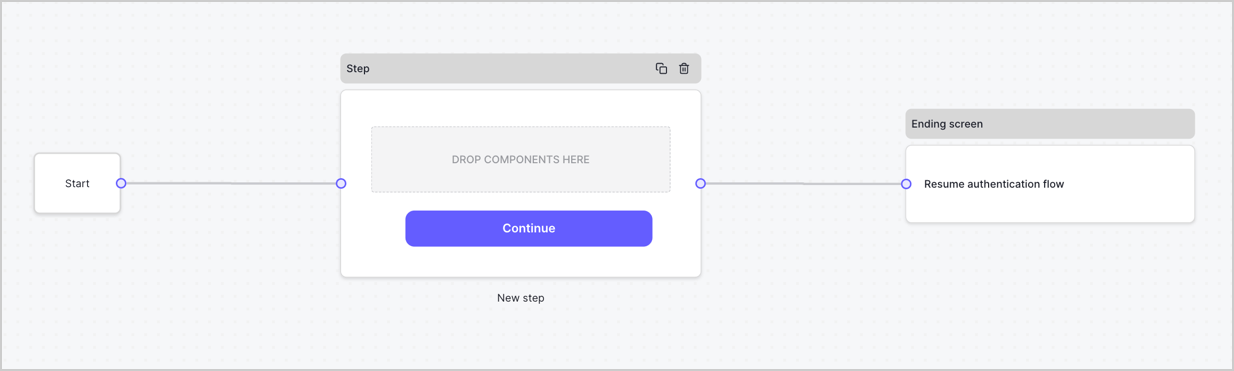
By default, a new form contains a Start node, a Step node, and an Ending screen node.
<Frame>
  <img src="https://mintcdn.com/docs-dev-update-unified-phone-experience-doc/ylEl3ArZzzwf2CXu/docs/images/cdy7uua7fh8z/2TZ9jSjgEcARFpULI6hz4R/a4319a1bd482f2ee5cc23100fdb2f42c/New-form-Forms-for-action-use-case.png?fit=max&auto=format&n=ylEl3ArZzzwf2CXu&q=85&s=2c30c02b5baec926acd57546f7bbcb6f" alt="Dashboard > Forms > Use Cases > Form" data-og-width="1234" width="1234" data-og-height="371" height="371" data-path="docs/images/cdy7uua7fh8z/2TZ9jSjgEcARFpULI6hz4R/a4319a1bd482f2ee5cc23100fdb2f42c/New-form-Forms-for-action-use-case.png" data-optimize="true" data-opv="3" srcset="https://mintcdn.com/docs-dev-update-unified-phone-experience-doc/ylEl3ArZzzwf2CXu/docs/images/cdy7uua7fh8z/2TZ9jSjgEcARFpULI6hz4R/a4319a1bd482f2ee5cc23100fdb2f42c/New-form-Forms-for-action-use-case.png?w=280&fit=max&auto=format&n=ylEl3ArZzzwf2CXu&q=85&s=6eddd95d2ba9a42c21aec1fac0d185b8 280w, https://mintcdn.com/docs-dev-update-unified-phone-experience-doc/ylEl3ArZzzwf2CXu/docs/images/cdy7uua7fh8z/2TZ9jSjgEcARFpULI6hz4R/a4319a1bd482f2ee5cc23100fdb2f42c/New-form-Forms-for-action-use-case.png?w=560&fit=max&auto=format&n=ylEl3ArZzzwf2CXu&q=85&s=5473f8c496379f1191a5e7aa77ebd64a 560w, https://mintcdn.com/docs-dev-update-unified-phone-experience-doc/ylEl3ArZzzwf2CXu/docs/images/cdy7uua7fh8z/2TZ9jSjgEcARFpULI6hz4R/a4319a1bd482f2ee5cc23100fdb2f42c/New-form-Forms-for-action-use-case.png?w=840&fit=max&auto=format&n=ylEl3ArZzzwf2CXu&q=85&s=c5f7fa3e41beb302f3e782a47a45a75c 840w, https://mintcdn.com/docs-dev-update-unified-phone-experience-doc/ylEl3ArZzzwf2CXu/docs/images/cdy7uua7fh8z/2TZ9jSjgEcARFpULI6hz4R/a4319a1bd482f2ee5cc23100fdb2f42c/New-form-Forms-for-action-use-case.png?w=1100&fit=max&auto=format&n=ylEl3ArZzzwf2CXu&q=85&s=692322817d08b7a67fef49e568a9b292 1100w, https://mintcdn.com/docs-dev-update-unified-phone-experience-doc/ylEl3ArZzzwf2CXu/docs/images/cdy7uua7fh8z/2TZ9jSjgEcARFpULI6hz4R/a4319a1bd482f2ee5cc23100fdb2f42c/New-form-Forms-for-action-use-case.png?w=1650&fit=max&auto=format&n=ylEl3ArZzzwf2CXu&q=85&s=b1f725fb8385426f61c1c602ef079814 1650w, https://mintcdn.com/docs-dev-update-unified-phone-experience-doc/ylEl3ArZzzwf2CXu/docs/images/cdy7uua7fh8z/2TZ9jSjgEcARFpULI6hz4R/a4319a1bd482f2ee5cc23100fdb2f42c/New-form-Forms-for-action-use-case.png?w=2500&fit=max&auto=format&n=ylEl3ArZzzwf2CXu&q=85&s=8593ccd6aebda8ef2ab5b8eb020663df 2500w" />
</Frame>

### Configure the Step node

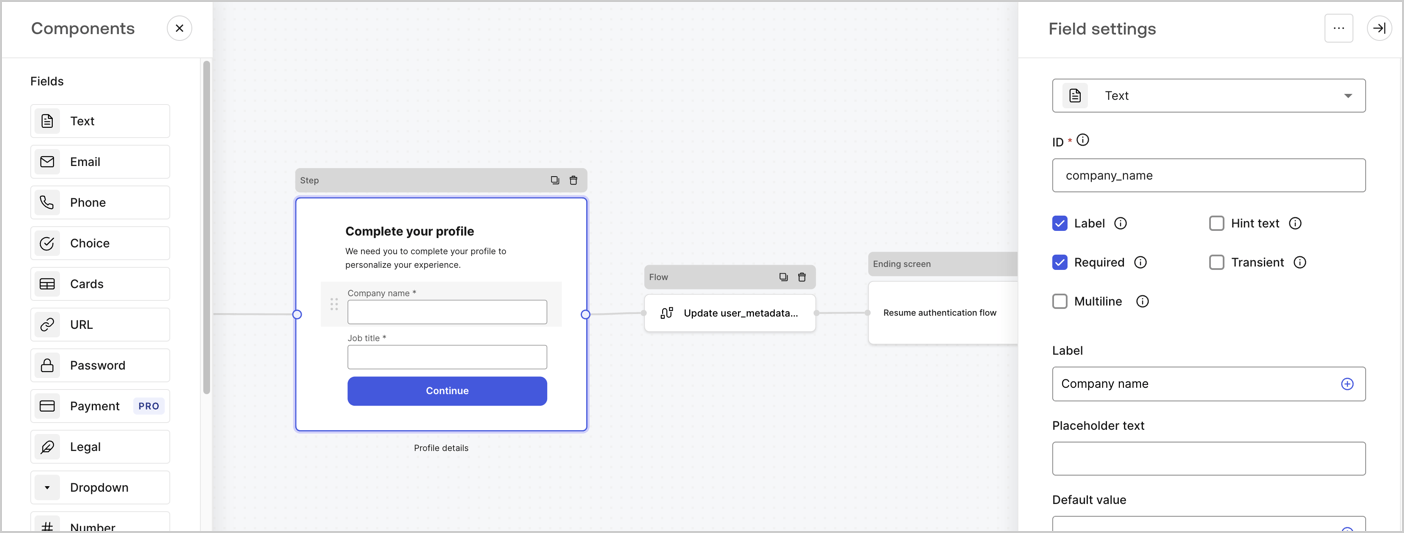
The Step node is the graphical interface visible to users. Add [Fields](/docs/customize/forms/nodes-and-components) to the Step node to collect the user's company name and job title values by following these steps:

1. Drag a **Rich text** field from the **Components menu** into the **Step** node.

   * **Rich text**: Enter a custom message.

     * **Example**: `Complete your profile! We need you to complete your profile to personalize your experience.`
   * Select **Save**.
2. Drag a **Text** field into the **Step** node.

   * **ID**: Enter `company_name`.
   * **Label**: Enable the checkbox.
   * **Label**: Enter `Company name`.
   * **Required**: Enable the checkbox.
   * Select **Save**.
3. Drag a **Text** field into the **Step** node.

   1. **ID**: Enter `job_title`.
   2. **Label**: Enter `Job title`.
   3. **Label**: Enable the checkbox.
   4. **Required**: Enable the checkbox.
   5. Select **Save**.
4. Select **Publish** to save.
<Frame>
  <img src="https://mintcdn.com/docs-dev-update-unified-phone-experience-doc/R0nhW3wVazuILJct/docs/images/cdy7uua7fh8z/6H1lRzwKyYioQyQJ9MtIoM/aa248e92fc028a68a5b92ff361a11644/progressive-profile-step.png?fit=max&auto=format&n=R0nhW3wVazuILJct&q=85&s=d02521e777771e92caf852da5de1ccc4" alt="Dashboard > Actions > Forms > Form > Step node" data-og-width="1404" width="1404" data-og-height="533" height="533" data-path="docs/images/cdy7uua7fh8z/6H1lRzwKyYioQyQJ9MtIoM/aa248e92fc028a68a5b92ff361a11644/progressive-profile-step.png" data-optimize="true" data-opv="3" srcset="https://mintcdn.com/docs-dev-update-unified-phone-experience-doc/R0nhW3wVazuILJct/docs/images/cdy7uua7fh8z/6H1lRzwKyYioQyQJ9MtIoM/aa248e92fc028a68a5b92ff361a11644/progressive-profile-step.png?w=280&fit=max&auto=format&n=R0nhW3wVazuILJct&q=85&s=342387aade2233b990e7df096b454dab 280w, https://mintcdn.com/docs-dev-update-unified-phone-experience-doc/R0nhW3wVazuILJct/docs/images/cdy7uua7fh8z/6H1lRzwKyYioQyQJ9MtIoM/aa248e92fc028a68a5b92ff361a11644/progressive-profile-step.png?w=560&fit=max&auto=format&n=R0nhW3wVazuILJct&q=85&s=0911a4e787744ceca36d4bb66f3602b2 560w, https://mintcdn.com/docs-dev-update-unified-phone-experience-doc/R0nhW3wVazuILJct/docs/images/cdy7uua7fh8z/6H1lRzwKyYioQyQJ9MtIoM/aa248e92fc028a68a5b92ff361a11644/progressive-profile-step.png?w=840&fit=max&auto=format&n=R0nhW3wVazuILJct&q=85&s=9a9cacaafb8dae3ccb6d2d87daaee26d 840w, https://mintcdn.com/docs-dev-update-unified-phone-experience-doc/R0nhW3wVazuILJct/docs/images/cdy7uua7fh8z/6H1lRzwKyYioQyQJ9MtIoM/aa248e92fc028a68a5b92ff361a11644/progressive-profile-step.png?w=1100&fit=max&auto=format&n=R0nhW3wVazuILJct&q=85&s=fac3bdf7cbe58e638aa66d27ba3a1afb 1100w, https://mintcdn.com/docs-dev-update-unified-phone-experience-doc/R0nhW3wVazuILJct/docs/images/cdy7uua7fh8z/6H1lRzwKyYioQyQJ9MtIoM/aa248e92fc028a68a5b92ff361a11644/progressive-profile-step.png?w=1650&fit=max&auto=format&n=R0nhW3wVazuILJct&q=85&s=b88155660c2e863af393a37171ef84e6 1650w, https://mintcdn.com/docs-dev-update-unified-phone-experience-doc/R0nhW3wVazuILJct/docs/images/cdy7uua7fh8z/6H1lRzwKyYioQyQJ9MtIoM/aa248e92fc028a68a5b92ff361a11644/progressive-profile-step.png?w=2500&fit=max&auto=format&n=R0nhW3wVazuILJct&q=85&s=de7e29dd1e58ed4871a462519b86501e 2500w" />
</Frame>

### Configure the flow node

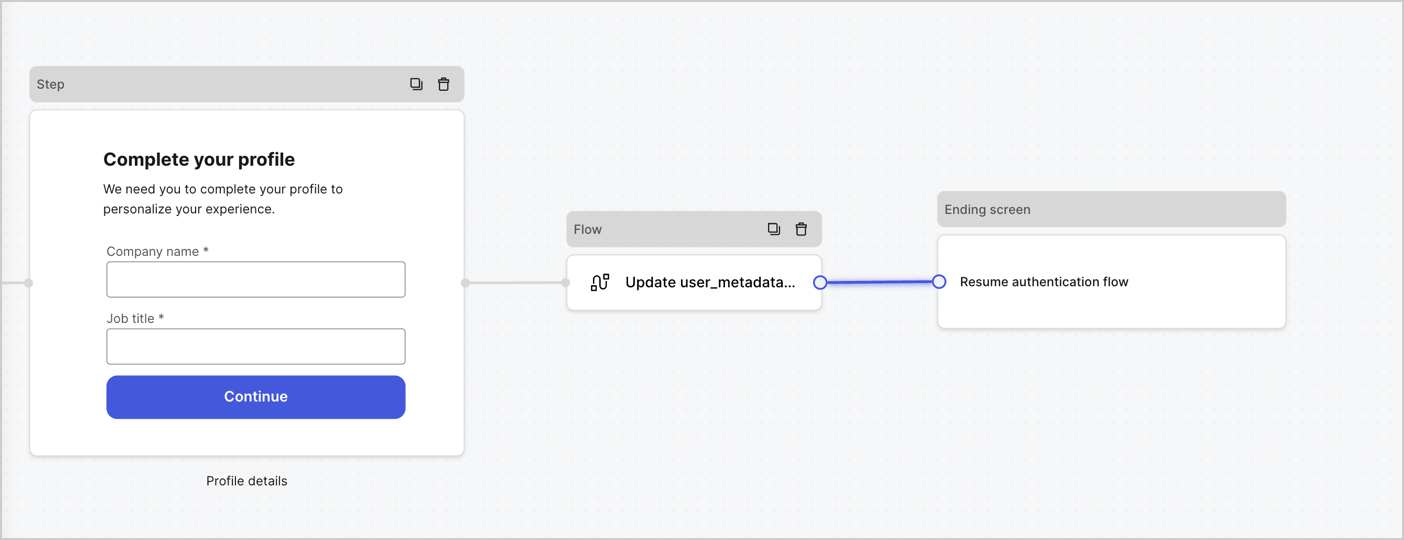
Add a **Flow** node after the **Step** node to update the `user_metadata` and resume the authentication flow by following these steps:

1. Select **Flow** from the bottom of the Form editor.
2. Remove the existing link between the **Step** and **Ending Screen** nodes.
3. Select the new **Flow** > **Click to add a flow** > **Create a new flow.**

   * Enter `Update user_metadata` in the **Name** field.
   * Select **Create**.
   * Select **Save**.
4. Link the **Flow** node to the **Step** and **Ending Screen** nodes as pictured below.
5. Select **Publish** to save.
<Frame>
  <img src="https://mintcdn.com/docs-dev-update-unified-phone-experience-doc/5pOEQwFPV53i-hEv/docs/images/cdy7uua7fh8z/5C91DaWn4LGtJT9BF87ssu/095171d0c452a287c44bfde12fd6d13f/link-nodes.png?fit=max&auto=format&n=5pOEQwFPV53i-hEv&q=85&s=d26ff3a72cb83c5a42e968beede94452" alt="Dashboard > Actions > Forms > Form" data-og-width="1404" width="1404" data-og-height="540" height="540" data-path="docs/images/cdy7uua7fh8z/5C91DaWn4LGtJT9BF87ssu/095171d0c452a287c44bfde12fd6d13f/link-nodes.png" data-optimize="true" data-opv="3" srcset="https://mintcdn.com/docs-dev-update-unified-phone-experience-doc/5pOEQwFPV53i-hEv/docs/images/cdy7uua7fh8z/5C91DaWn4LGtJT9BF87ssu/095171d0c452a287c44bfde12fd6d13f/link-nodes.png?w=280&fit=max&auto=format&n=5pOEQwFPV53i-hEv&q=85&s=ddf9e67b4caebe5791a7a56a2fad45f7 280w, https://mintcdn.com/docs-dev-update-unified-phone-experience-doc/5pOEQwFPV53i-hEv/docs/images/cdy7uua7fh8z/5C91DaWn4LGtJT9BF87ssu/095171d0c452a287c44bfde12fd6d13f/link-nodes.png?w=560&fit=max&auto=format&n=5pOEQwFPV53i-hEv&q=85&s=a513205edab561a037c93922b311a873 560w, https://mintcdn.com/docs-dev-update-unified-phone-experience-doc/5pOEQwFPV53i-hEv/docs/images/cdy7uua7fh8z/5C91DaWn4LGtJT9BF87ssu/095171d0c452a287c44bfde12fd6d13f/link-nodes.png?w=840&fit=max&auto=format&n=5pOEQwFPV53i-hEv&q=85&s=e4af652f7601b2e1f90572ccaffa257d 840w, https://mintcdn.com/docs-dev-update-unified-phone-experience-doc/5pOEQwFPV53i-hEv/docs/images/cdy7uua7fh8z/5C91DaWn4LGtJT9BF87ssu/095171d0c452a287c44bfde12fd6d13f/link-nodes.png?w=1100&fit=max&auto=format&n=5pOEQwFPV53i-hEv&q=85&s=c8540d4e5a9a41664afb39ce9242b138 1100w, https://mintcdn.com/docs-dev-update-unified-phone-experience-doc/5pOEQwFPV53i-hEv/docs/images/cdy7uua7fh8z/5C91DaWn4LGtJT9BF87ssu/095171d0c452a287c44bfde12fd6d13f/link-nodes.png?w=1650&fit=max&auto=format&n=5pOEQwFPV53i-hEv&q=85&s=cba6e6ed9f0d595eb63b8d40148daf82 1650w, https://mintcdn.com/docs-dev-update-unified-phone-experience-doc/5pOEQwFPV53i-hEv/docs/images/cdy7uua7fh8z/5C91DaWn4LGtJT9BF87ssu/095171d0c452a287c44bfde12fd6d13f/link-nodes.png?w=2500&fit=max&auto=format&n=5pOEQwFPV53i-hEv&q=85&s=c072dab80576a20d98e547a2a49e7e90 2500w" />
</Frame>

Add an Auth0 Update user action to the flow by following these steps:

1. Select the **Update user\_metadata** flow, then select the **Edit Flow** to open the Flow editor in a new tab.
2. Below the **Start** action, select the **+** icon to add an **Update user** action. Complete the fields below, then select **Save** to continue.

   * **Connection**: Select from the dropdown the Vault connection to your M2M application.

   * **User ID**: Enter `{{context.user.user_id}}`.

   * **Body**: Copy and paste the following code to update the user\_metadata with `job_title` and `company_name` properties.

     ```json lines theme={null}
     {
        "user_metadata": {
           "job_title": "{{fields.job_title}}",
           "company_name": "{{fields.company_name}}"
        }
     }
     ```

   * Select **Save**.
3. Select **Publish** to save.

<Frame>
  <img src="https://mintcdn.com/docs-dev-update-unified-phone-experience-doc/JB9S1qRFaug_2fQu/docs/images/cdy7uua7fh8z/65Jx4W5oIZJyyvA8z4HqIx/0661b1a8ca6361c54fc4fef07ba59f0b/update-user.png?fit=max&auto=format&n=JB9S1qRFaug_2fQu&q=85&s=5c41f90e505f838c4458f632a92c4c47" alt="Dashboard > Actions > Forms > Flows" data-og-width="1404" width="1404" data-og-height="244" height="244" data-path="docs/images/cdy7uua7fh8z/65Jx4W5oIZJyyvA8z4HqIx/0661b1a8ca6361c54fc4fef07ba59f0b/update-user.png" data-optimize="true" data-opv="3" srcset="https://mintcdn.com/docs-dev-update-unified-phone-experience-doc/JB9S1qRFaug_2fQu/docs/images/cdy7uua7fh8z/65Jx4W5oIZJyyvA8z4HqIx/0661b1a8ca6361c54fc4fef07ba59f0b/update-user.png?w=280&fit=max&auto=format&n=JB9S1qRFaug_2fQu&q=85&s=c4a884f937b53dd75c47ac7950ad9108 280w, https://mintcdn.com/docs-dev-update-unified-phone-experience-doc/JB9S1qRFaug_2fQu/docs/images/cdy7uua7fh8z/65Jx4W5oIZJyyvA8z4HqIx/0661b1a8ca6361c54fc4fef07ba59f0b/update-user.png?w=560&fit=max&auto=format&n=JB9S1qRFaug_2fQu&q=85&s=cd8c6f1fec804d2b24ce73a72e445628 560w, https://mintcdn.com/docs-dev-update-unified-phone-experience-doc/JB9S1qRFaug_2fQu/docs/images/cdy7uua7fh8z/65Jx4W5oIZJyyvA8z4HqIx/0661b1a8ca6361c54fc4fef07ba59f0b/update-user.png?w=840&fit=max&auto=format&n=JB9S1qRFaug_2fQu&q=85&s=347d4612fd2362198fefb9d93e4b9924 840w, https://mintcdn.com/docs-dev-update-unified-phone-experience-doc/JB9S1qRFaug_2fQu/docs/images/cdy7uua7fh8z/65Jx4W5oIZJyyvA8z4HqIx/0661b1a8ca6361c54fc4fef07ba59f0b/update-user.png?w=1100&fit=max&auto=format&n=JB9S1qRFaug_2fQu&q=85&s=780c9ba78ea191f4eed366221eaab47f 1100w, https://mintcdn.com/docs-dev-update-unified-phone-experience-doc/JB9S1qRFaug_2fQu/docs/images/cdy7uua7fh8z/65Jx4W5oIZJyyvA8z4HqIx/0661b1a8ca6361c54fc4fef07ba59f0b/update-user.png?w=1650&fit=max&auto=format&n=JB9S1qRFaug_2fQu&q=85&s=5549bac3f8da36c46f7a3d02cd8e8311 1650w, https://mintcdn.com/docs-dev-update-unified-phone-experience-doc/JB9S1qRFaug_2fQu/docs/images/cdy7uua7fh8z/65Jx4W5oIZJyyvA8z4HqIx/0661b1a8ca6361c54fc4fef07ba59f0b/update-user.png?w=2500&fit=max&auto=format&n=JB9S1qRFaug_2fQu&q=85&s=77843976eac13e4ceceb2d6365ae82c2 2500w" />
</Frame>

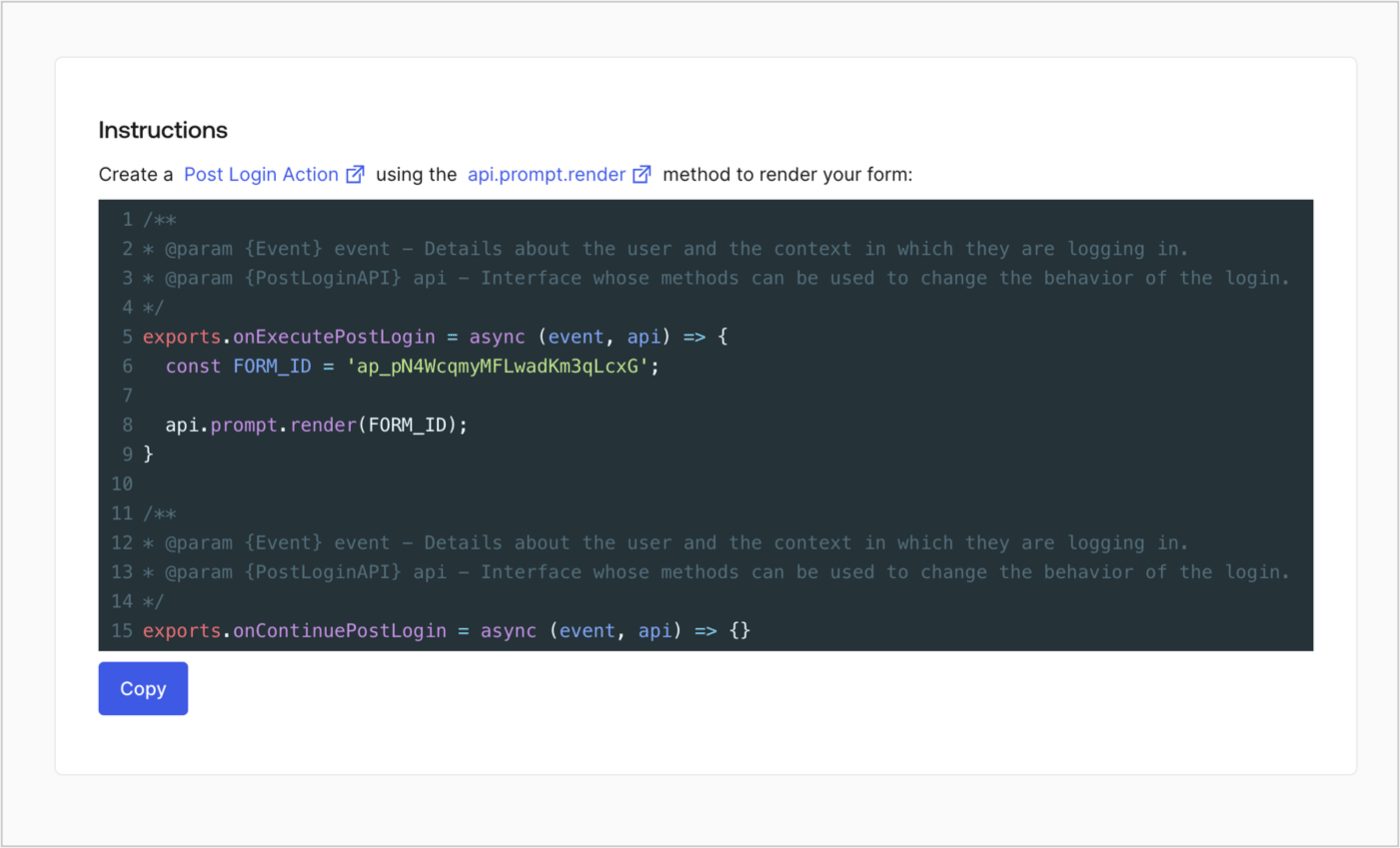
### Retrieve the form render code

Retrieve the form render code to visually render the form with a custom Post Login Action by following these steps:

* From the Form editor, select **`<> Render`**.
* Select **Copy**.
<Frame>
  <img src="https://mintcdn.com/docs-dev-update-unified-phone-experience-doc/7xWcOOQmOL2i0RtP/docs/images/cdy7uua7fh8z/2EIUzc539sq9lwoTKbjoJv/496a864c0fc44a782c9cadca119dbfb0/embed.png?fit=max&auto=format&n=7xWcOOQmOL2i0RtP&q=85&s=d363c35d15372e75cc3f3df3963b7bea" alt="Dashboard > Actions > Forms > Form > Embed" data-og-width="1400" width="1400" data-og-height="848" height="848" data-path="docs/images/cdy7uua7fh8z/2EIUzc539sq9lwoTKbjoJv/496a864c0fc44a782c9cadca119dbfb0/embed.png" data-optimize="true" data-opv="3" srcset="https://mintcdn.com/docs-dev-update-unified-phone-experience-doc/7xWcOOQmOL2i0RtP/docs/images/cdy7uua7fh8z/2EIUzc539sq9lwoTKbjoJv/496a864c0fc44a782c9cadca119dbfb0/embed.png?w=280&fit=max&auto=format&n=7xWcOOQmOL2i0RtP&q=85&s=16d43f399f0615a0361ed0bb531da91b 280w, https://mintcdn.com/docs-dev-update-unified-phone-experience-doc/7xWcOOQmOL2i0RtP/docs/images/cdy7uua7fh8z/2EIUzc539sq9lwoTKbjoJv/496a864c0fc44a782c9cadca119dbfb0/embed.png?w=560&fit=max&auto=format&n=7xWcOOQmOL2i0RtP&q=85&s=301a70a16d117adc54ca1e671659d5e5 560w, https://mintcdn.com/docs-dev-update-unified-phone-experience-doc/7xWcOOQmOL2i0RtP/docs/images/cdy7uua7fh8z/2EIUzc539sq9lwoTKbjoJv/496a864c0fc44a782c9cadca119dbfb0/embed.png?w=840&fit=max&auto=format&n=7xWcOOQmOL2i0RtP&q=85&s=3596092c35d8cb03a5dc11ad3e4c3845 840w, https://mintcdn.com/docs-dev-update-unified-phone-experience-doc/7xWcOOQmOL2i0RtP/docs/images/cdy7uua7fh8z/2EIUzc539sq9lwoTKbjoJv/496a864c0fc44a782c9cadca119dbfb0/embed.png?w=1100&fit=max&auto=format&n=7xWcOOQmOL2i0RtP&q=85&s=828c1b677bb9e216284bca61a23dd211 1100w, https://mintcdn.com/docs-dev-update-unified-phone-experience-doc/7xWcOOQmOL2i0RtP/docs/images/cdy7uua7fh8z/2EIUzc539sq9lwoTKbjoJv/496a864c0fc44a782c9cadca119dbfb0/embed.png?w=1650&fit=max&auto=format&n=7xWcOOQmOL2i0RtP&q=85&s=b7180b46815d591ef22537802e50d437 1650w, https://mintcdn.com/docs-dev-update-unified-phone-experience-doc/7xWcOOQmOL2i0RtP/docs/images/cdy7uua7fh8z/2EIUzc539sq9lwoTKbjoJv/496a864c0fc44a782c9cadca119dbfb0/embed.png?w=2500&fit=max&auto=format&n=7xWcOOQmOL2i0RtP&q=85&s=600b150f76e13d1ad2b85ff5db195ec3 2500w" />
</Frame>

## Create a Post Login Action

Create a post-login Action to render your form by following these steps:

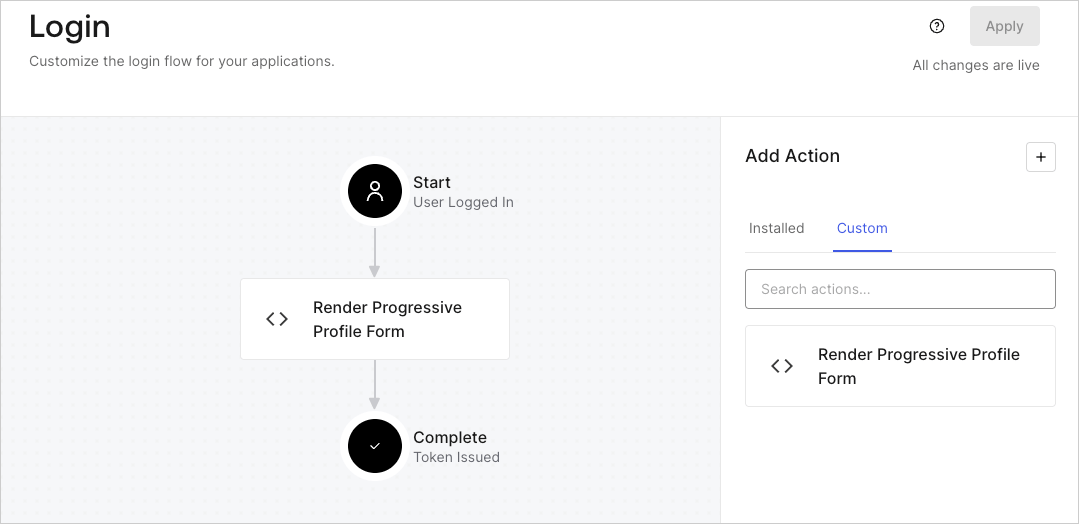
1. Navigate to **Auth0 Dashboard > Actions > Flows > Login.**
2. Select the **+** icon and select **Build from scratch**:

   * **Name**: Enter `Render Progressive Profile Form`.
   * **Trigger**: Select `Login / Post Login`.
   * **Runtime**: Select the recommended version.
3. Select **Create**.

To configure the post-login Action:

1. Delete the existing code from the Code editor.
2. Paste the form embed code into the Code editor.
3. Edit the code to define the conditional logic that will render the form.

   ```javascript lines theme={null}
   /**
   * @param {Event} event - Details about the user and the context in which they are logging in.
   * @param {PostLoginAPI} api - Interface whose methods can be used to change the behavior of the login.
   */
   exports.onExecutePostLogin = async (event, api) => {
     const FORM_ID = 'REPLACE_WITH_YOUR_FORM_ID';

     if (
       event.stats.logins_count > 2 &&
       !event.user.user_metadata.company_name &&
       !event.user.user_metadata.job_title
     ) {
       api.prompt.render(FORM_ID);
     }
   }

   exports.onContinuePostLogin = async (event, api) => { }
   ```

   <Callout icon="file-lines" color="#0EA5E9" iconType="regular">
     The example code above will render the form when a user has a login count > 2 and is missing the user metadata company\_name and job\_title properties.
   </Callout>
4. Select **Deploy.**
5. Drag and Drop the **Render Progressive Profile Form** Action to the **Login** flow.
   <Frame>
     <img src="https://mintcdn.com/docs-dev-update-unified-phone-experience-doc/gVlSRNk6tu2PaweA/docs/images/cdy7uua7fh8z/1QjjZdpTqTxx012UDN4xk9/99fba5ef4068a5688f1762eea7f42976/renderprogessiveprofile.png?fit=max&auto=format&n=gVlSRNk6tu2PaweA&q=85&s=484b50e52417f64dd25d784c078fc790" alt="Dashboard > Forms > Use Cases Progressive Profile Login Action" data-og-width="1079" width="1079" data-og-height="524" height="524" data-path="docs/images/cdy7uua7fh8z/1QjjZdpTqTxx012UDN4xk9/99fba5ef4068a5688f1762eea7f42976/renderprogessiveprofile.png" data-optimize="true" data-opv="3" srcset="https://mintcdn.com/docs-dev-update-unified-phone-experience-doc/gVlSRNk6tu2PaweA/docs/images/cdy7uua7fh8z/1QjjZdpTqTxx012UDN4xk9/99fba5ef4068a5688f1762eea7f42976/renderprogessiveprofile.png?w=280&fit=max&auto=format&n=gVlSRNk6tu2PaweA&q=85&s=466420937e7af0600b187504b990d467 280w, https://mintcdn.com/docs-dev-update-unified-phone-experience-doc/gVlSRNk6tu2PaweA/docs/images/cdy7uua7fh8z/1QjjZdpTqTxx012UDN4xk9/99fba5ef4068a5688f1762eea7f42976/renderprogessiveprofile.png?w=560&fit=max&auto=format&n=gVlSRNk6tu2PaweA&q=85&s=98f917936be096edc7e3945544fba753 560w, https://mintcdn.com/docs-dev-update-unified-phone-experience-doc/gVlSRNk6tu2PaweA/docs/images/cdy7uua7fh8z/1QjjZdpTqTxx012UDN4xk9/99fba5ef4068a5688f1762eea7f42976/renderprogessiveprofile.png?w=840&fit=max&auto=format&n=gVlSRNk6tu2PaweA&q=85&s=526d799508395db27cb5aa01a85a6647 840w, https://mintcdn.com/docs-dev-update-unified-phone-experience-doc/gVlSRNk6tu2PaweA/docs/images/cdy7uua7fh8z/1QjjZdpTqTxx012UDN4xk9/99fba5ef4068a5688f1762eea7f42976/renderprogessiveprofile.png?w=1100&fit=max&auto=format&n=gVlSRNk6tu2PaweA&q=85&s=5275b3567f8f70edc36cde540fc0045f 1100w, https://mintcdn.com/docs-dev-update-unified-phone-experience-doc/gVlSRNk6tu2PaweA/docs/images/cdy7uua7fh8z/1QjjZdpTqTxx012UDN4xk9/99fba5ef4068a5688f1762eea7f42976/renderprogessiveprofile.png?w=1650&fit=max&auto=format&n=gVlSRNk6tu2PaweA&q=85&s=3b90f56604fee5b4284bf6c64d280fb7 1650w, https://mintcdn.com/docs-dev-update-unified-phone-experience-doc/gVlSRNk6tu2PaweA/docs/images/cdy7uua7fh8z/1QjjZdpTqTxx012UDN4xk9/99fba5ef4068a5688f1762eea7f42976/renderprogessiveprofile.png?w=2500&fit=max&auto=format&n=gVlSRNk6tu2PaweA&q=85&s=b31836cef1fd568422a9c8a0a62e6a51 2500w" />
   </Frame>
6. Select **Apply**.

### Test implementation

Test the implementation by following these steps:

1. Log in with an existing user whose login count is greater than 2 and their `user_metadata` attributes `company_name` and `job_title` have no values.
2. The post-login action in the Login flow will render the form and prompt for the information.
3. Select **Auth0 Dashboard > User Management > Users,** locate the user and verify that the `user_metadata` attributes `company_name` and `job_title` contain information.
